

ChatGPT Desktop
Connect the ChatGPT to the Lightcast MCP server to access real-time Lightcast labor market intelligence and structured data directly within ChatGPT.
Prerequisites
Before you begin, ensure you have:
- A Lightcast account with access to the MCP server
- The ChatGPT desktop app installed
- Your Lightcast MCP endpoint URL:
https://mcp.ai.api.lightcast.io
If this is your first time connecting, you'll be prompted to authenticate using the Interactive lightcast-ai authentication pop-up browser.
Connect the ChatGPT
Follow these steps to connect the ChatGPT to the Lightcast MCP server.
-
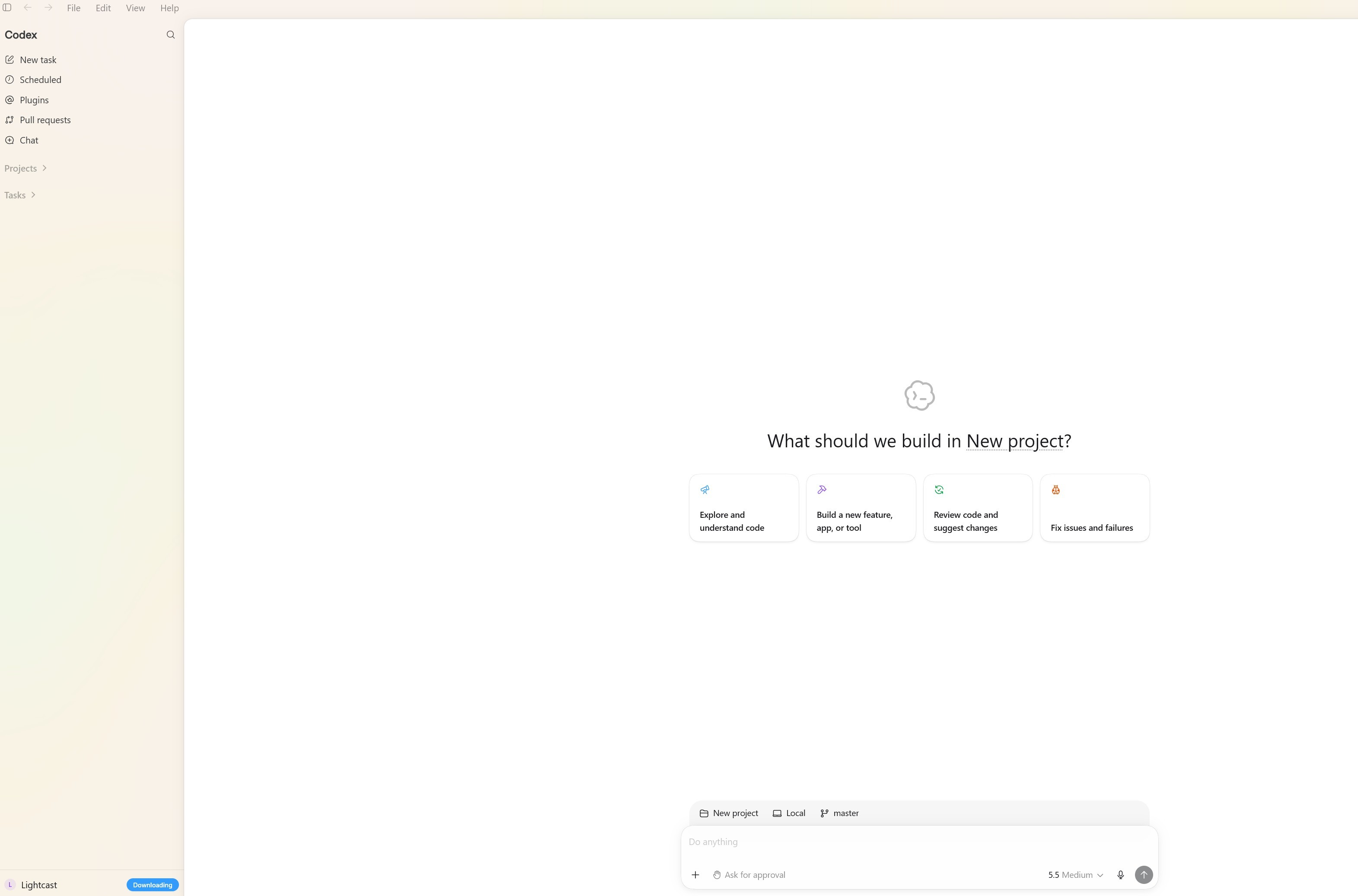
Open the ChatGPT
Launch the ChatGPT desktop application.
-
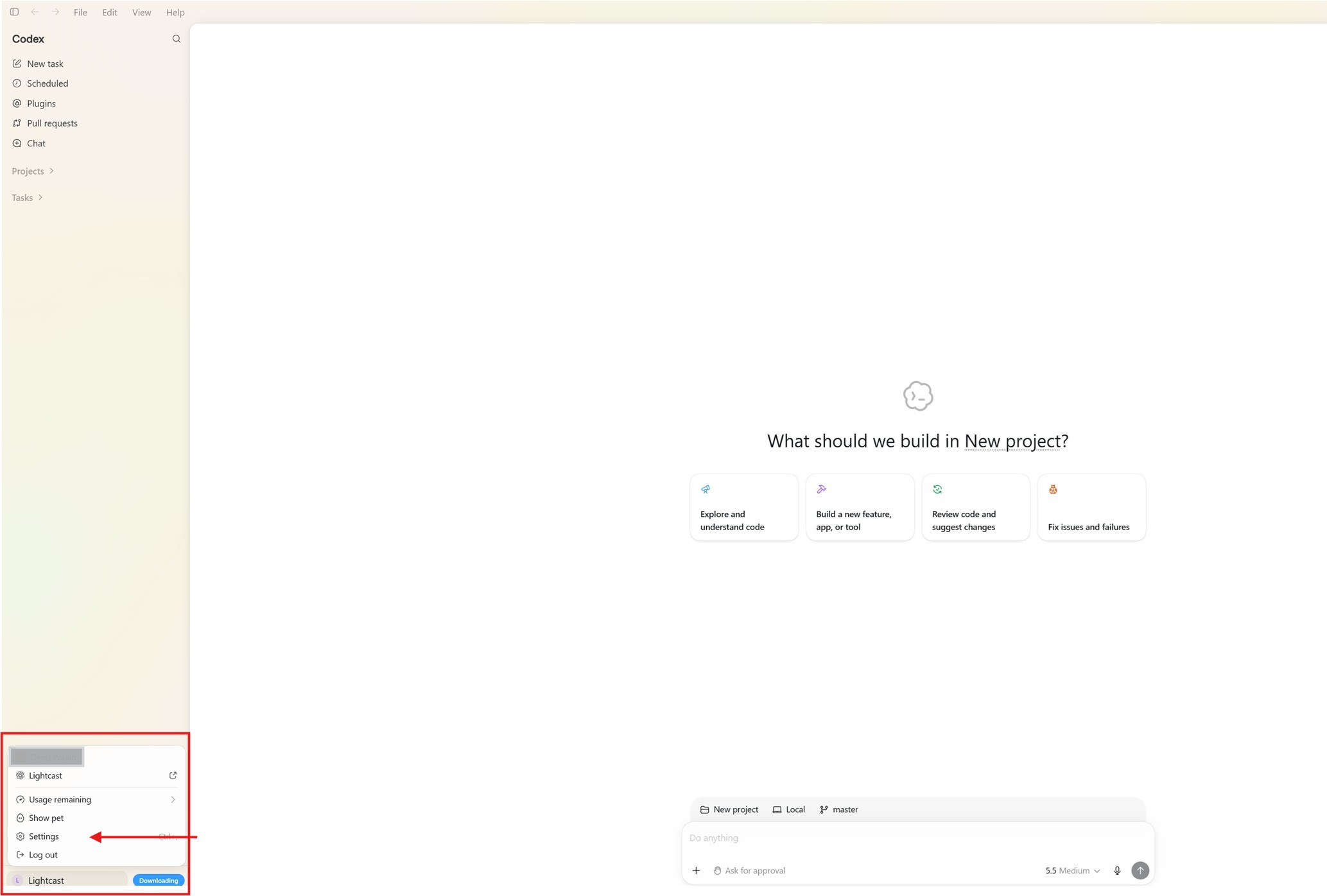
Open Settings
From the left navigation pane, click your profile, then select Settings.
-
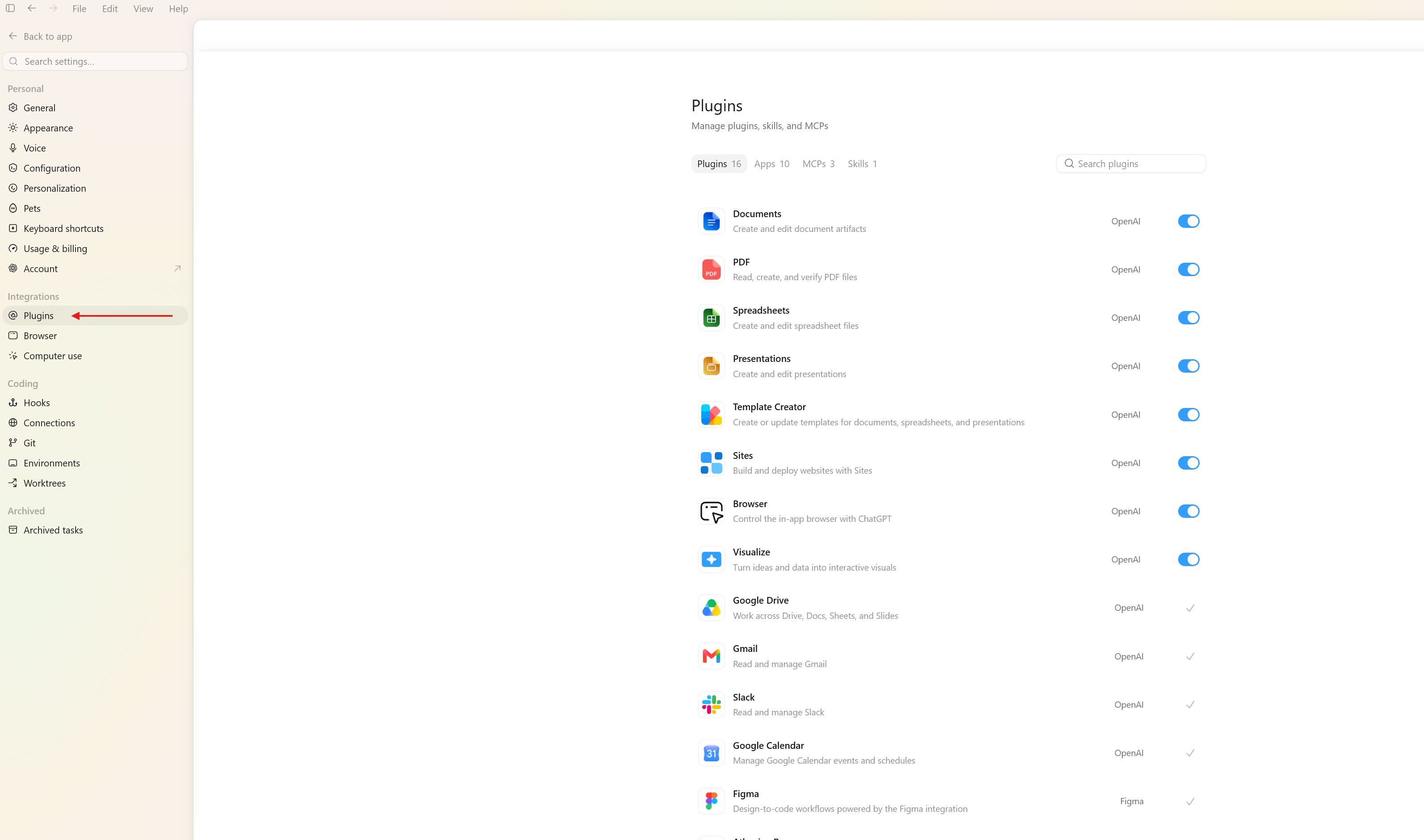
Open the Integrations Page
Navigate to Integrations → Plugins
-
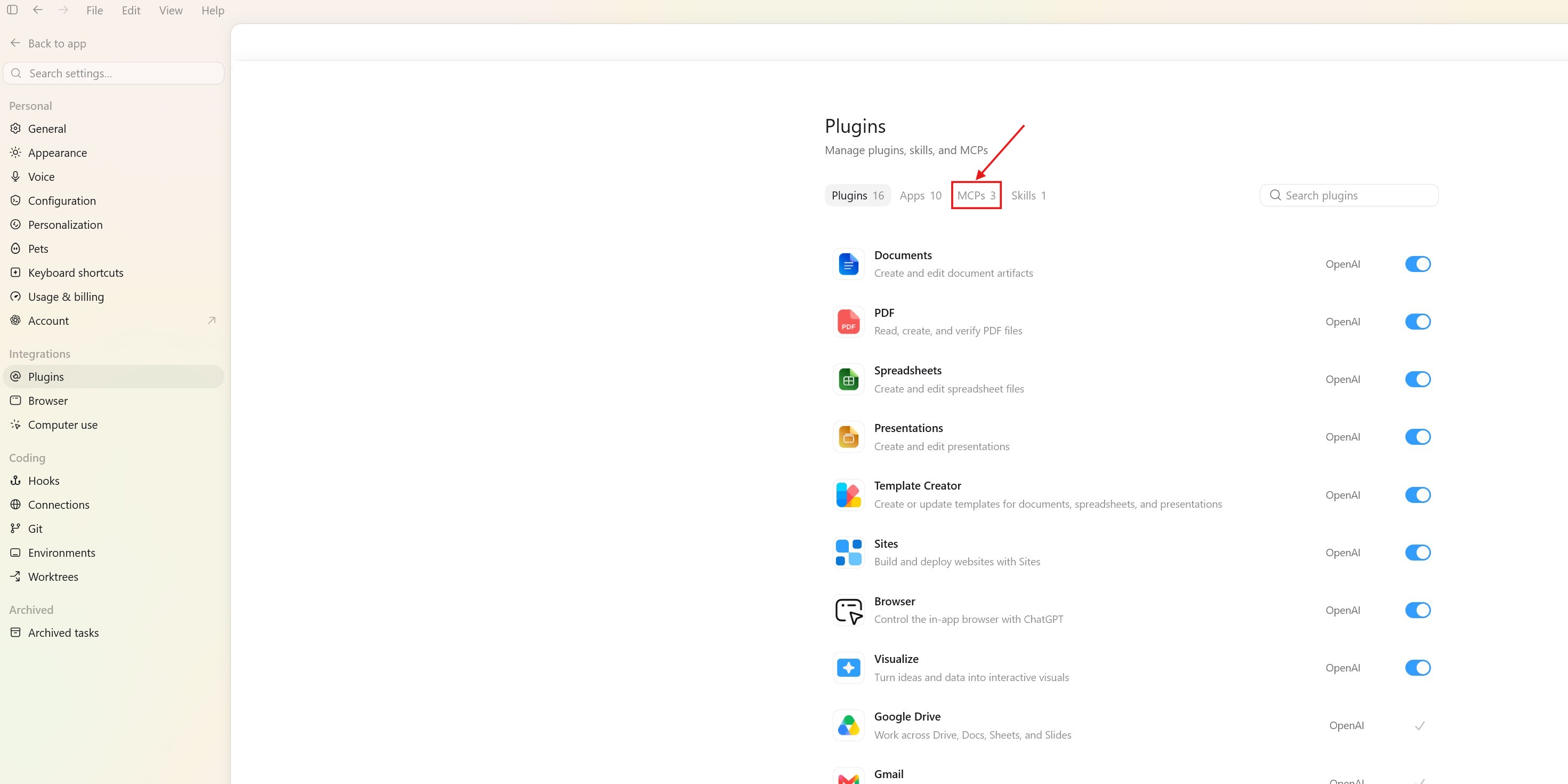
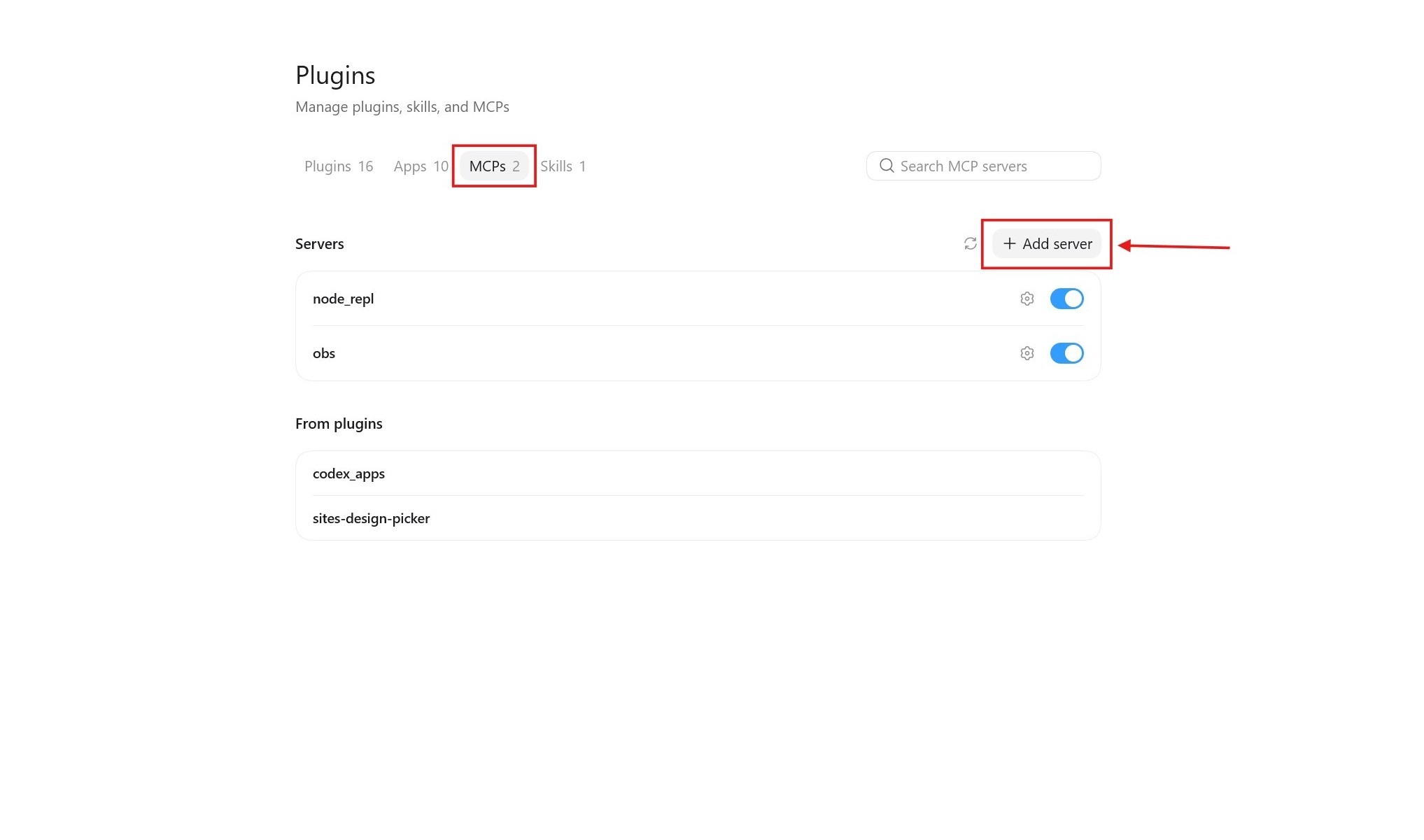
Open the MCP Tab
Select the MCP tab.
-
Add a New MCP Server
Click + Add New Server.
-
Configure the MCP Server
Enter the required server details and provide the remaining connection details as supplied by Lightcast, then click Save.
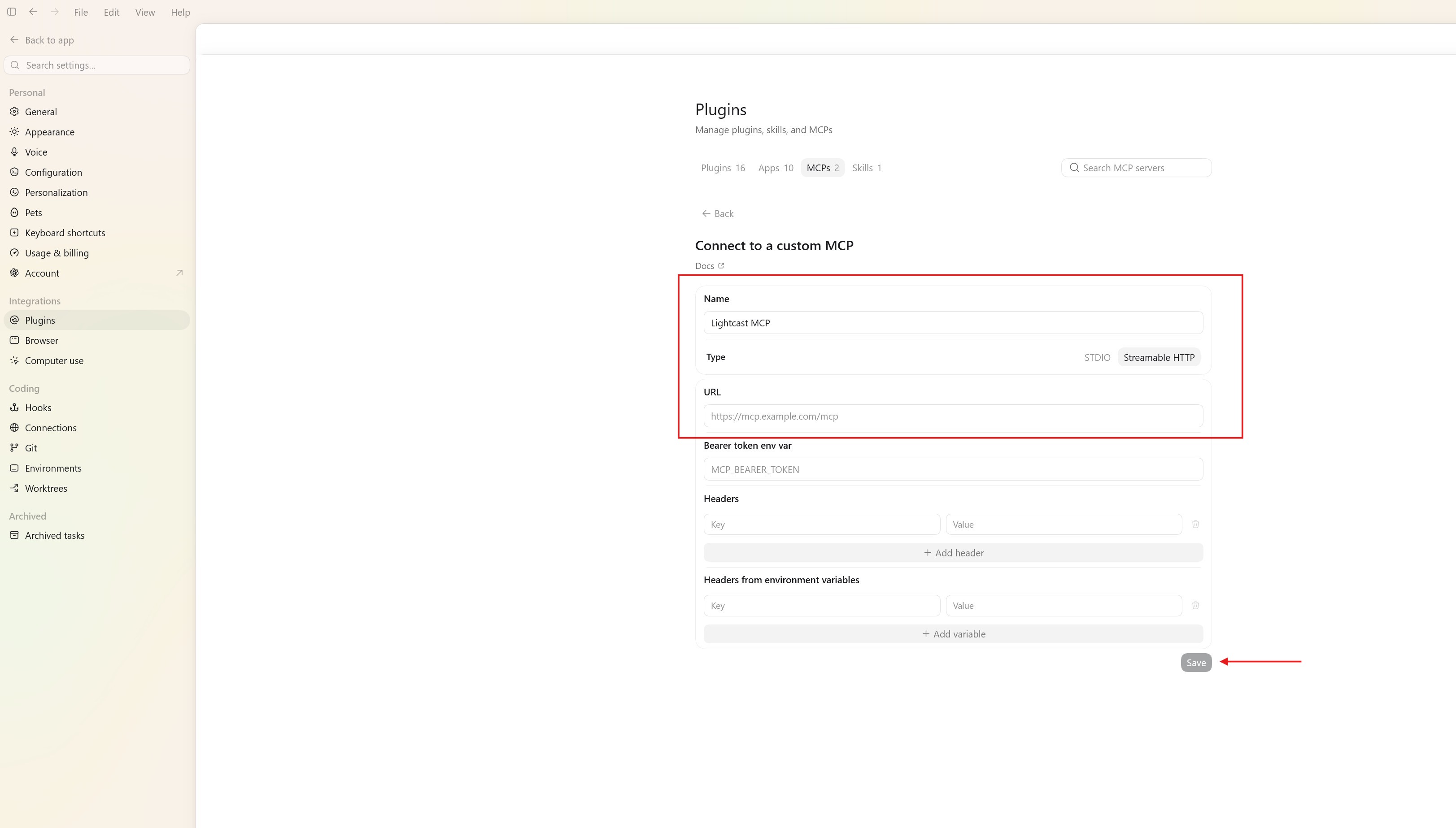
Ensure the following values are configured:
Field Value Type Streamable HTTP URL https://mcp.ai.api.lightcast.io
-
Authenticate
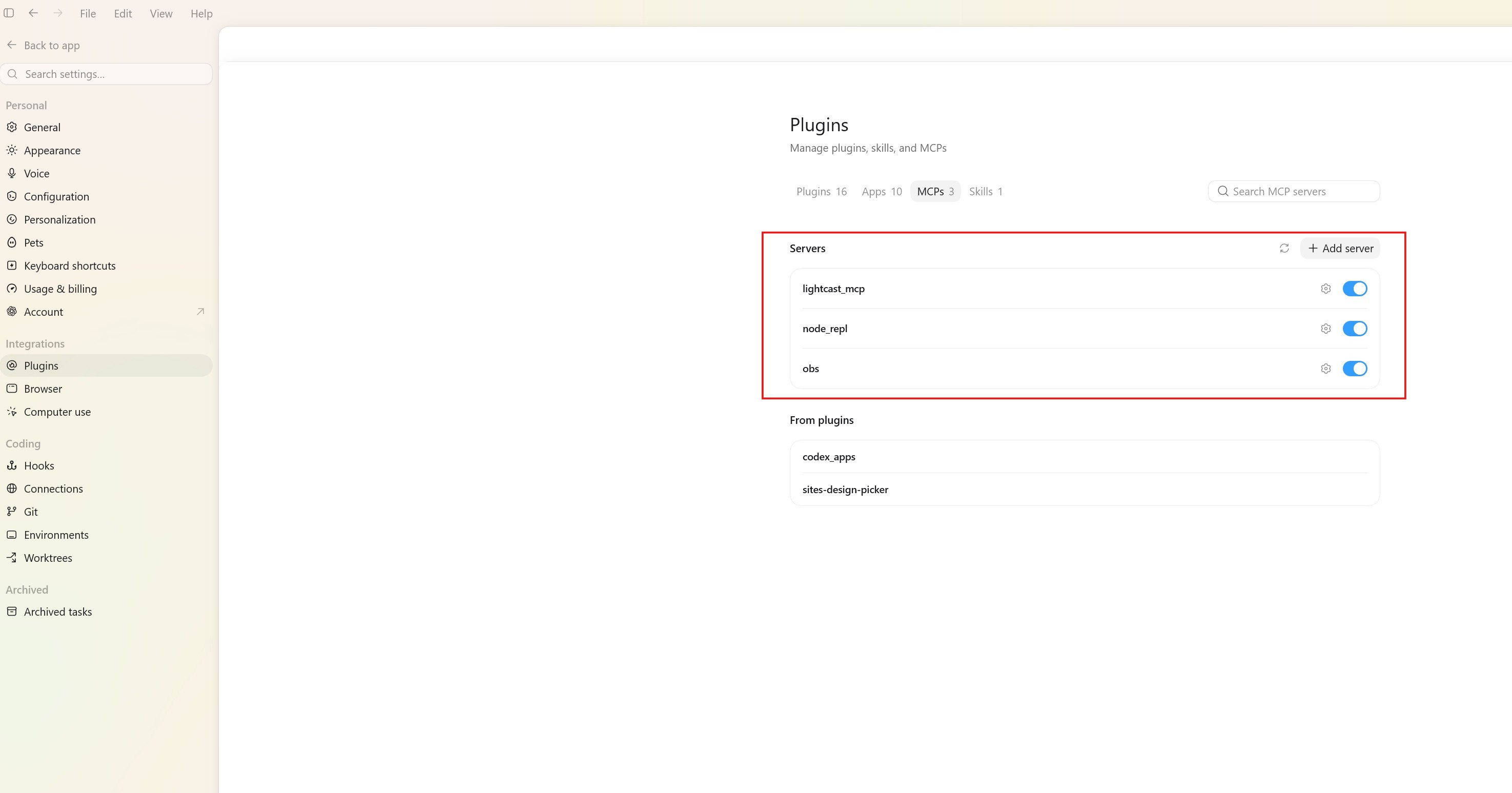
Click Save to begin authentication.
A browser window opens, prompting you to sign in with your Lightcast account. Complete the authentication flow to authorize the ChatGPT.
Updated 3 months ago