

Claude Desktop
Connect Claude Desktop to the Lightcast MCP server to access real-time Lightcast labor market intelligence and structured data directly within Claude.
Prerequisites
Before you begin, ensure you have:
- A Lightcast account with access to the MCP server
- Claude Desktop version 3.0 installed
- Your Lightcast MCP endpoint URL:
https://mcp.ai.api.lightcast.io
If this is your first time connecting, you'll be prompted to authenticate using the Interactive lightcast-ai authentication pop-up browser.
Connect Claude Desktop
Follow these steps to connect Claude Desktop to the Lightcast MCP server.
-
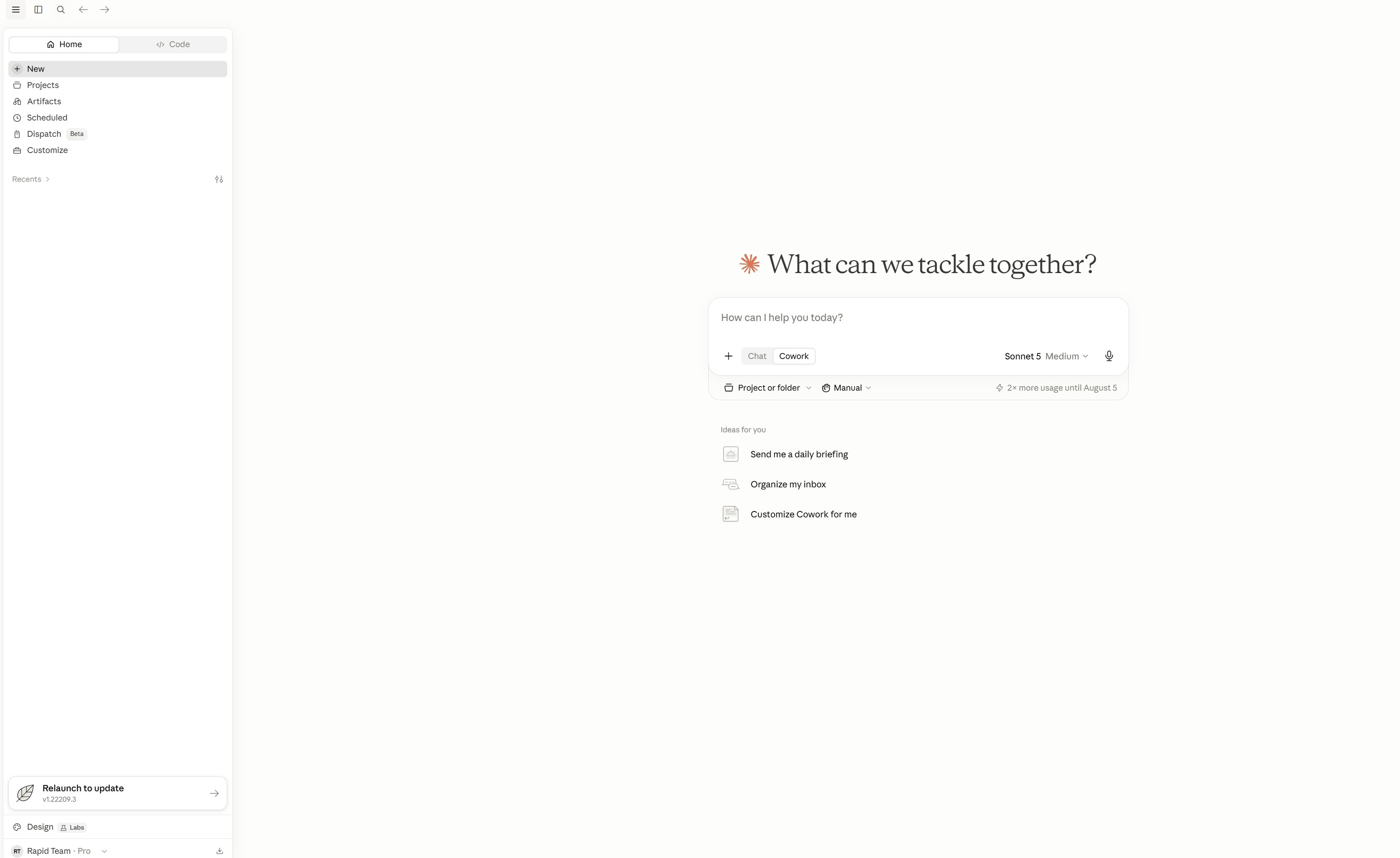
Open Claude Desktop
Launch the Claude Desktop application.
-
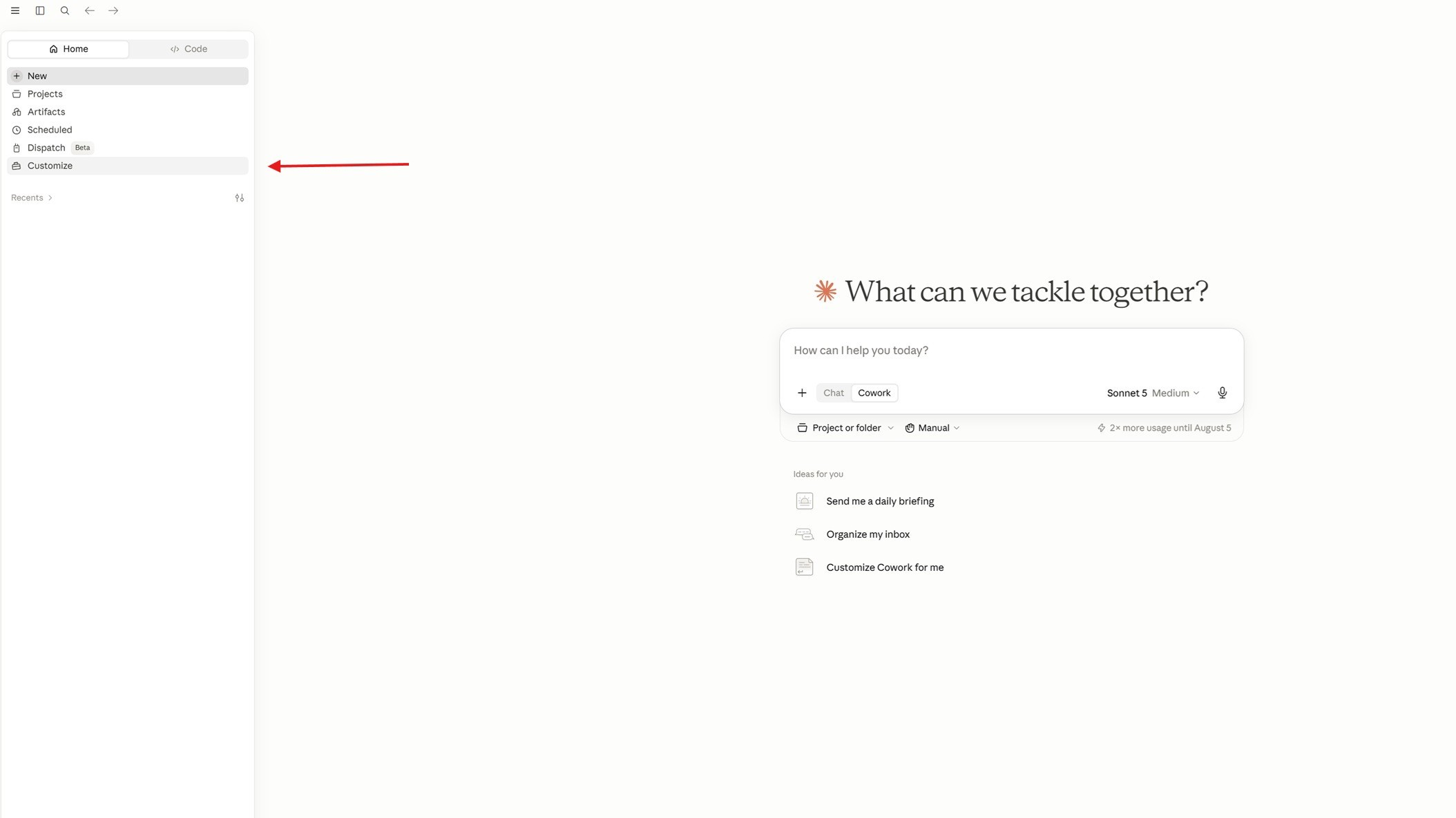
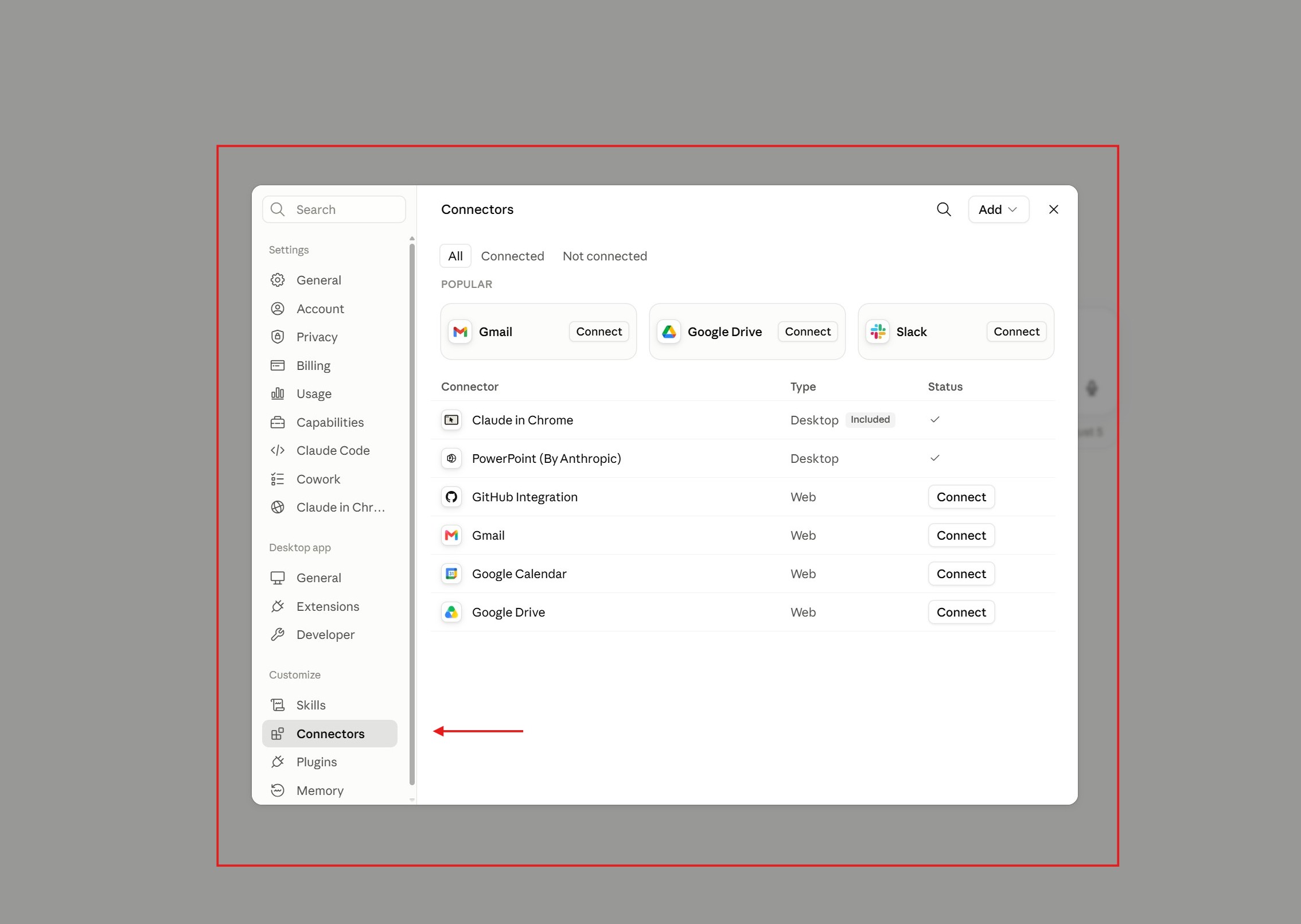
Open the Connector Settings
Navigate to Customize → Connectors
-
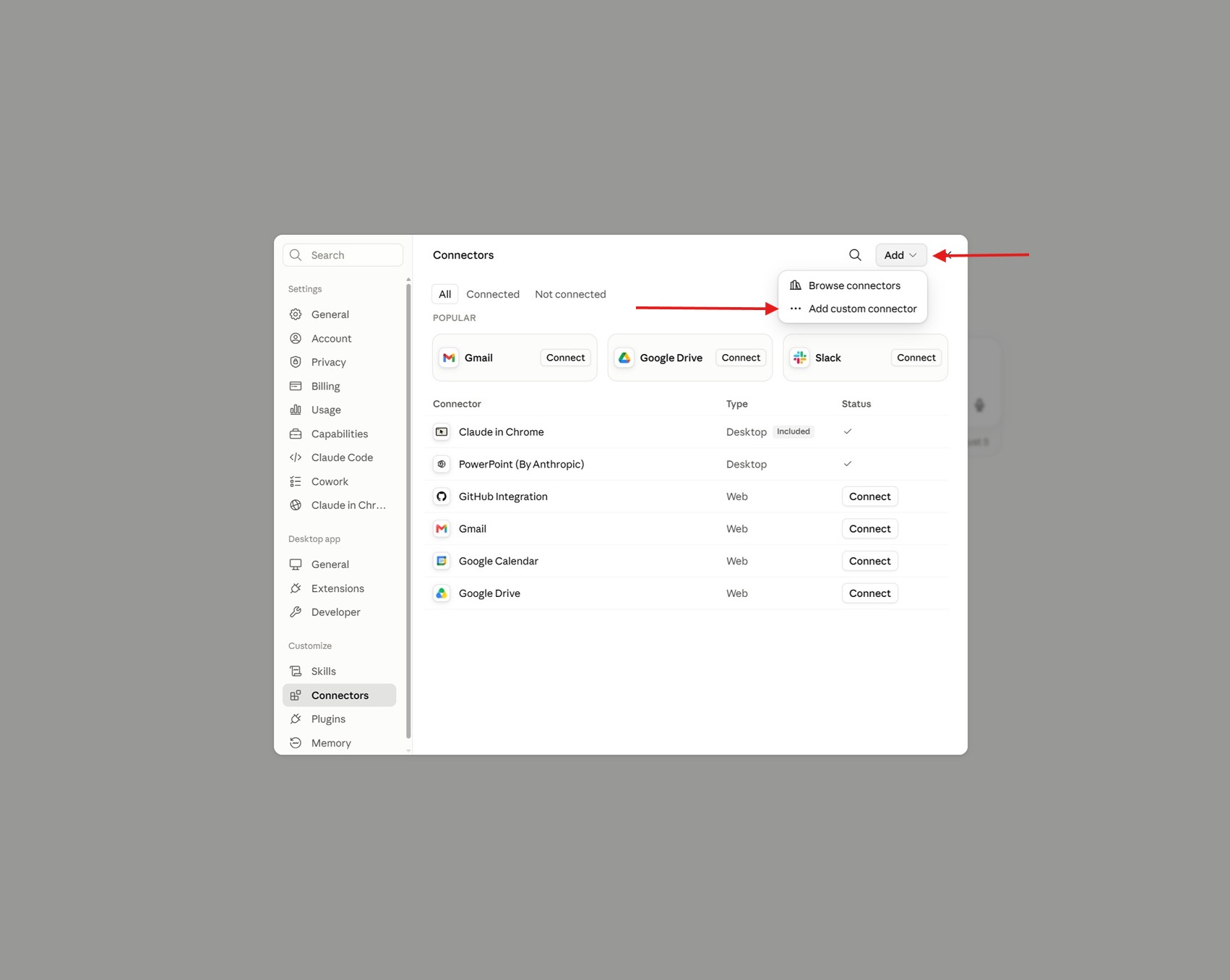
Add a Custom Connector
Click Add, then select Add Custom Connector.
-
Configure the MCP Connector
Enter the following information and click Add to save the connector.
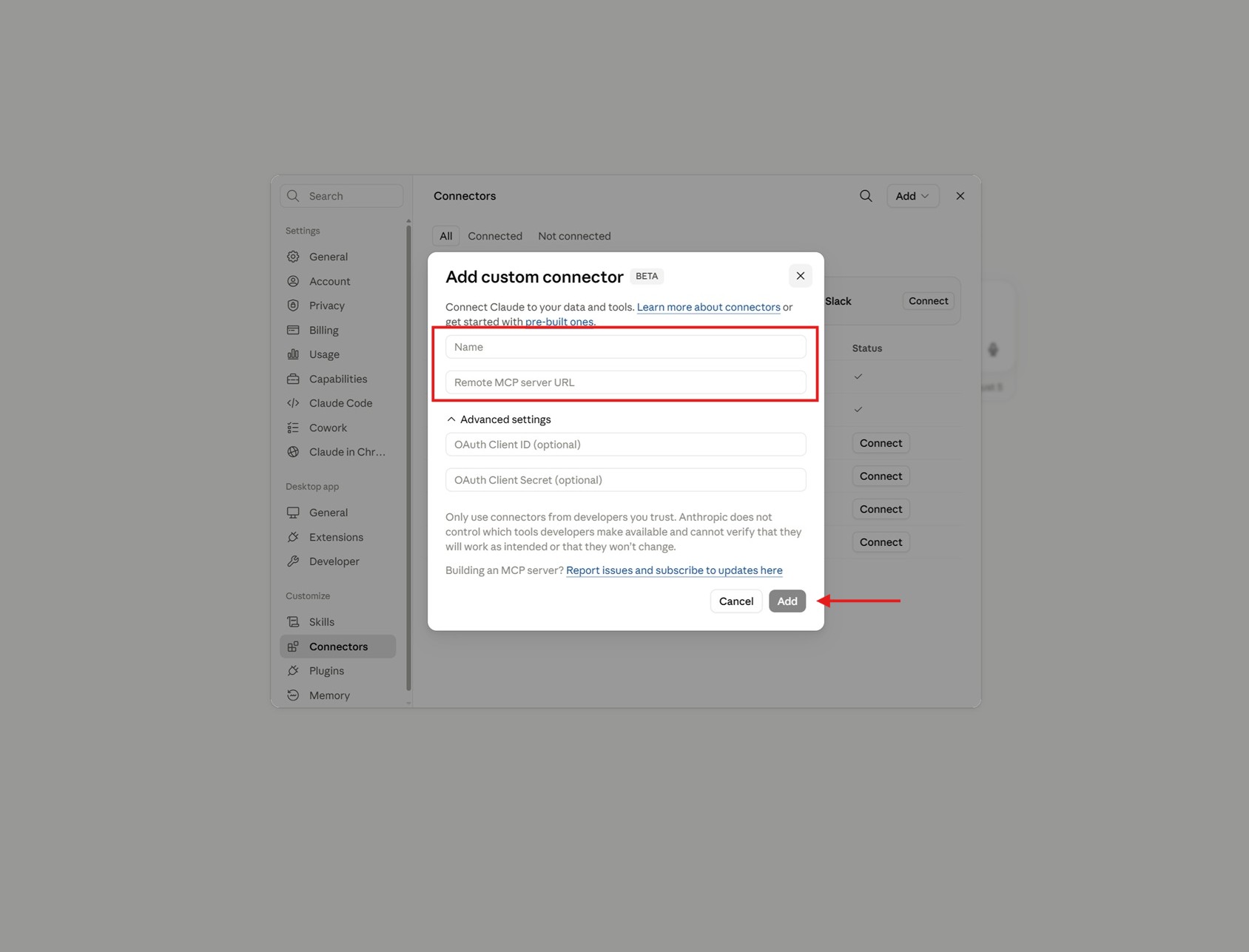
Field Value Name Lightcast MCP URL https://mcp.ai.api.lightcast.io -
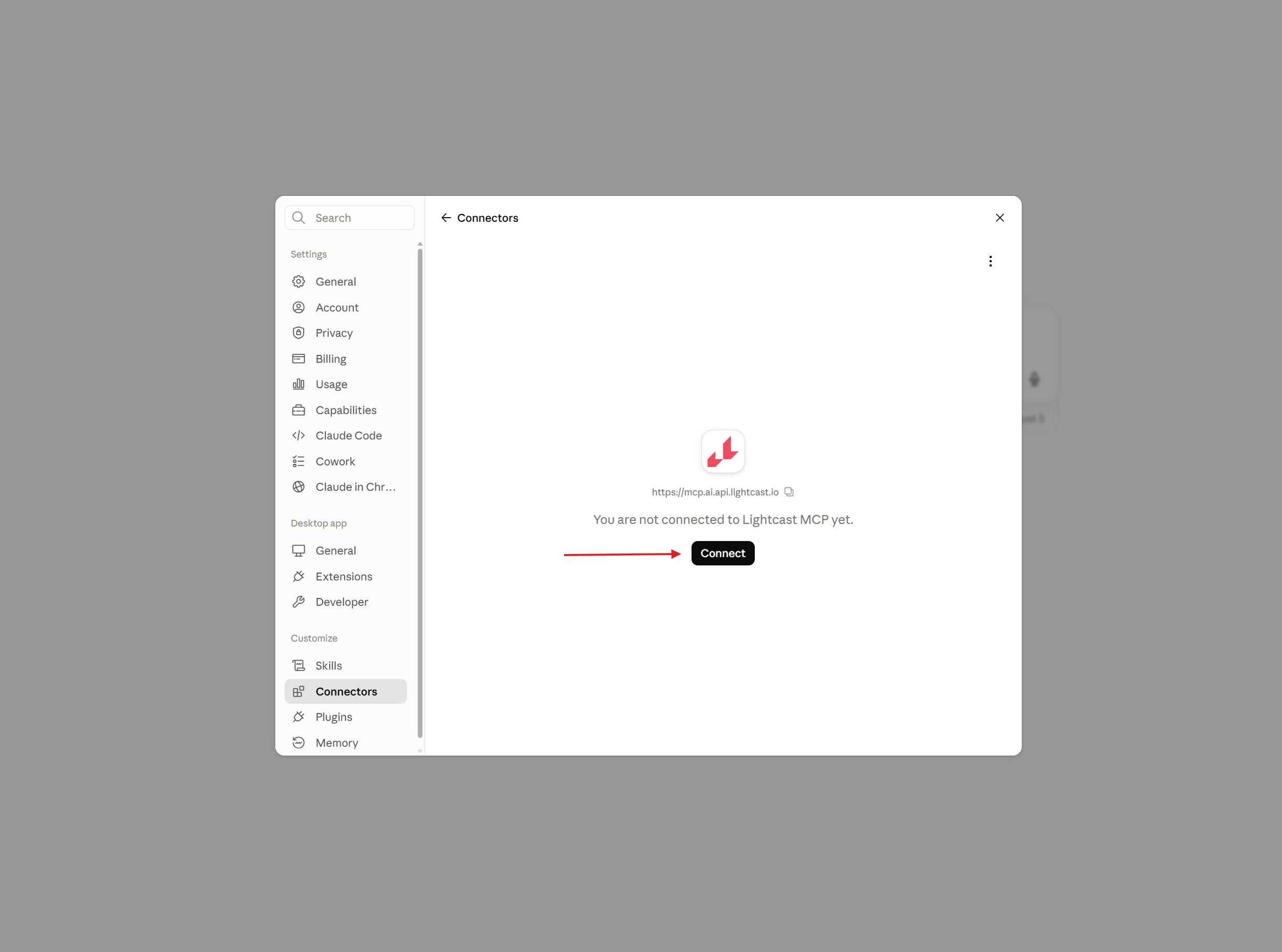
Authenticate
Click Connect to begin authentication.
A browser window will open, prompting you to sign in with your Lightcast account. Complete the authentication flow to authorize Claude Desktop.
-
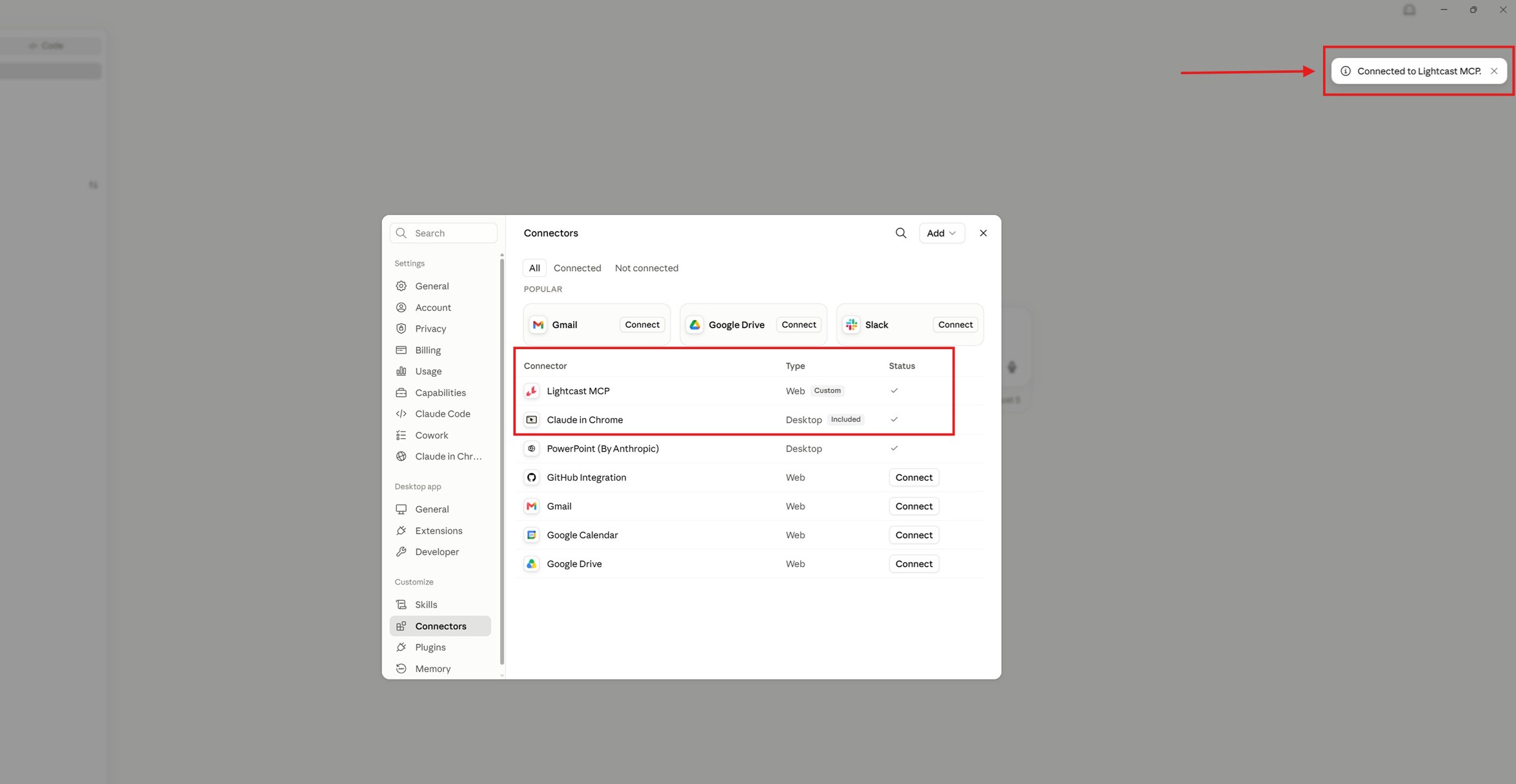
Verify the Connection
After authentication completes successfully, Claude Desktop displays the connector as connected.
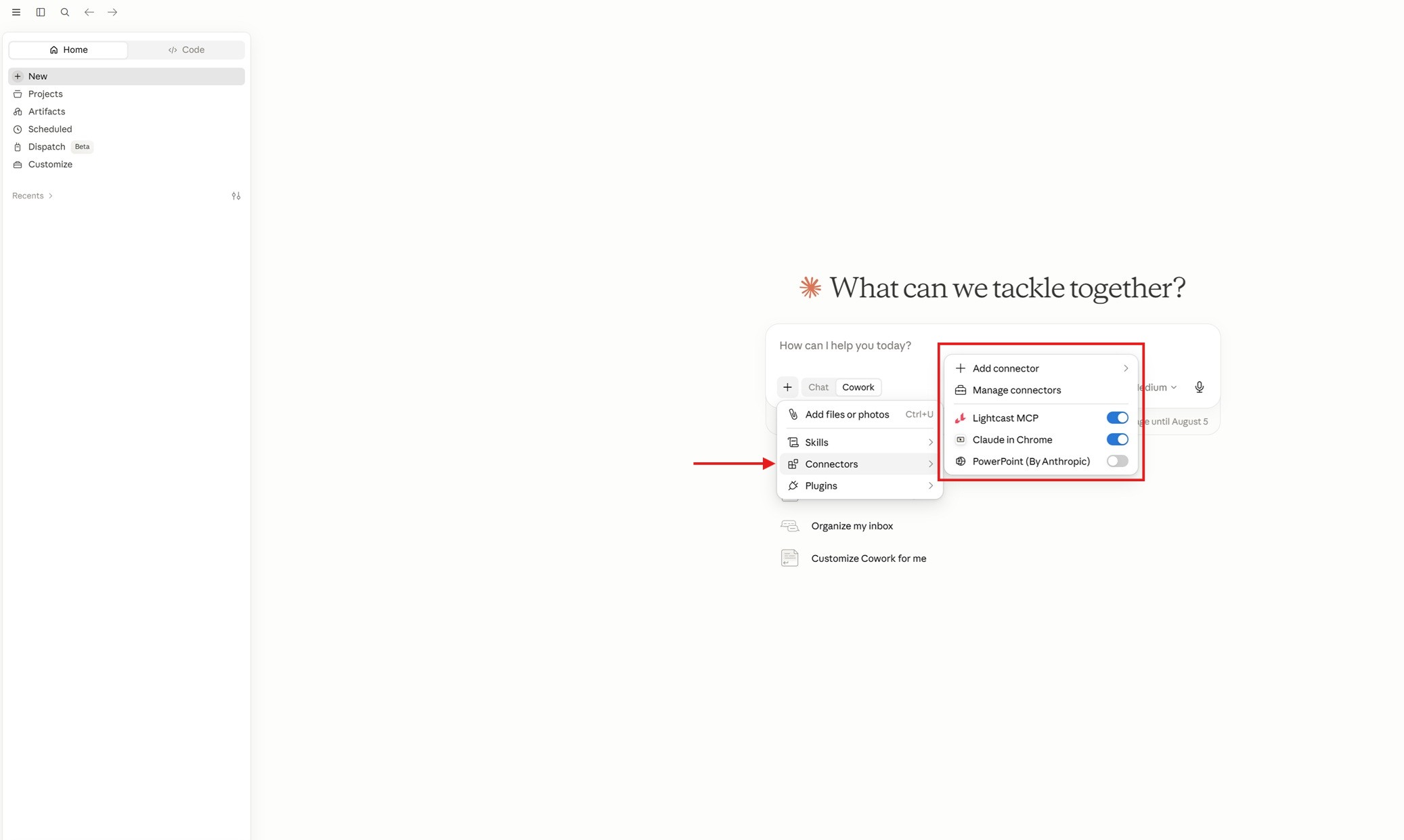
You can also verify the connection status from the Connectors tab.
Updated 3 months ago